
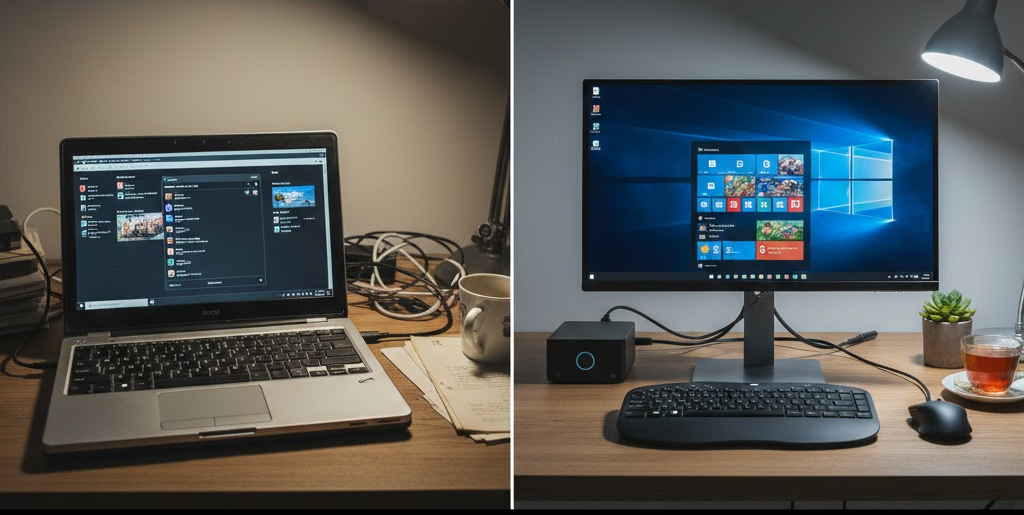
Revive Your Old Computer With a Budget Windows 11 Pro Upgrade
I Was Ready to Give Up on This PC
The computer was slow.
Startup took forever.
Even opening a browser felt like a chore.
I was already looking at new laptops — until I decided to try one last thing.
Instead of replacing hardware, I focused on the software side. A clean, properly activated Windows 11 Pro setup, paired with a few smart optimizations, completely changed how this old machine felt.
And that’s when it clicked:
Most old computers aren’t dead — they’re just poorly configured.
Why Old PCs Feel Slow (Even When Hardware Is Fine)
Before blaming age, it helps to understand what usually goes wrong.
Common problems include:
- Years of background apps and startup clutter
- Outdated or mismatched Windows installations
- Missing Pro-level features that improve control and performance
- Incomplete or unofficial system setups
The result? A machine that feels outdated — even if the hardware still has life left.
Why Windows 11 Pro Makes a Difference
Windows 11 Pro isn’t just about business features. It gives you more control, which directly affects performance on older systems.
Key advantages include:
- Better resource management tools
- Advanced power and performance policies
- Improved security without heavy third-party software
- Cleaner system behavior when properly installed
On older PCs, control equals speed.
The Budget Upgrade Approach (Without Hardware Changes)
Instead of spending hundreds on RAM or SSDs right away, the smartest move is often:
- Clean install Windows
- Activate a legitimate Windows 11 Pro license
- Optimize system settings
This approach costs very little compared to new hardware — and the performance jump is often surprising.
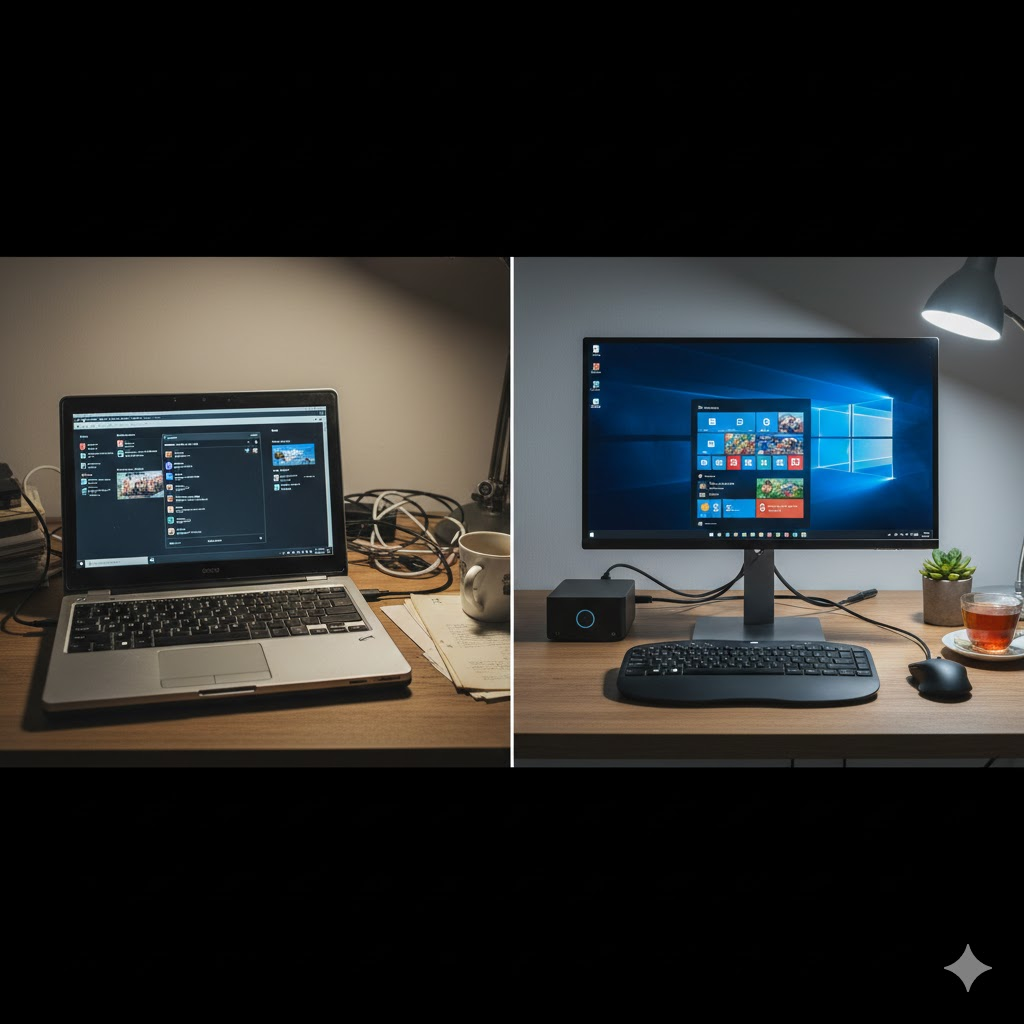
What “Reviving” an Old PC Actually Looks Like
After upgrading properly, the difference is noticeable almost immediately:
- Faster boot times
- Smoother multitasking
- Fewer background interruptions
- Better stability under load
The computer doesn’t feel new — it feels usable again, which is often all people want.
Optimization Matters More Than Specs
A properly configured system beats stronger hardware running bloated software.
Simple but effective steps include:
- Disabling unnecessary startup programs
- Using Pro-level power settings
- Keeping drivers clean and up to date
- Avoiding heavy third-party “optimizer” tools
Windows runs best when it’s allowed to do its job without interference.
Is This Upgrade Worth It for Everyone?
This approach is ideal if:
- Your PC still turns on reliably
- You mainly browse, work, study, or watch content
- You want the most life out of existing hardware
- You’re not ready to buy a new machine
It’s not magic — but it’s smart value.
Why This Topic Is Evergreen
People will always search for:
- Ways to revive old laptops
- Budget PC upgrades
- Windows optimization tips
Hardware prices change. Software evolves.
But the desire to save money and extend device life never disappears.
That’s why budget PC revival content consistently performs well in search.
Final Thoughts: Don’t Replace What You Can Restore
Before you recycle, sell, or abandon an old computer, consider this:
A clean, properly activated Windows 11 Pro setup — paired with smart optimization — can give your PC a second life for a fraction of the cost of new hardware.
Sometimes, the best upgrade isn’t what you add.
It’s what you fix.